Introduction
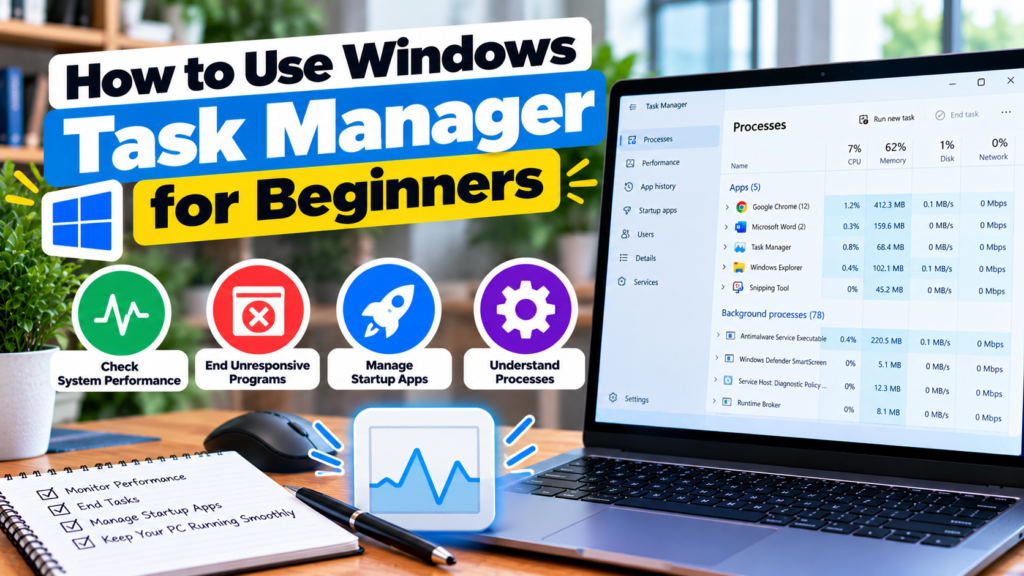
Windows Task Manager is a useful tool that helps users understand what is happening on their computers. It displays information about running applications, processor usage, memory, storage activity, and startup programs.
Many people open Task Manager only when an application freezes. However, it can also help identify programs that consume too many resources, investigate slow performance, and manage startup behavior.
In my opinion, learning the basics of Task Manager is valuable for every Windows user. You do not need to be a computer expert to understand the main sections and use them for simple troubleshooting.
In this guide, I will explain how to open Windows Task Manager, understand its main features, and use it safely to monitor computer performance.
1. How to Open Task Manager
There are several ways to open Task Manager in Windows.
The quickest method for many users is to press Ctrl + Shift + Esc on the keyboard. Task Manager should open directly.
You can also right click the Start button and select Task Manager. Another option is to press Ctrl + Alt + Delete and select Task Manager from the security screen.
If you are using an older Windows configuration, you may find additional ways to access it through the taskbar or Start menu search.
Once the application opens, you can review its sections to understand how your computer is using its resources.
Learning the keyboard shortcut is useful because it allows you to open Task Manager quickly when a program stops responding.
2. Understand the Processes Section
The Processes section shows applications and background processes that are currently running.
You can review the amount of CPU, memory, disk, and network resources used by different processes.
For example, a browser may consume considerable memory when many tabs are open. A large application may use significant CPU resources while processing a file.
You can select a column heading to sort the list by that resource. Sorting by CPU or Memory may help you identify which applications are using the most resources at that moment.
However, high resource usage is not automatically a problem. Some programs need additional resources to complete demanding tasks.
Before closing an application, make sure you recognize it and understand what it does.
3. Check CPU Usage
The CPU, or central processing unit, performs calculations and processes instructions for your computer.
To monitor CPU activity, open Task Manager and select Performance, then CPU.
You will see information about current processor usage and other details about the installed CPU.
If CPU usage remains high while the computer is slow, check the Processes section to identify the applications using the most processing power.
For example, video editing, software installation, and large file compression tasks may temporarily increase CPU usage.
If an unfamiliar application repeatedly consumes substantial resources, check its purpose and whether an update is available.
Remember that high CPU usage during a demanding task can be normal. Investigate whether the usage matches what your computer is doing before taking action.
4. Check RAM Usage
RAM provides temporary working memory for applications and system processes.
To check memory usage, open Task Manager and select Performance, then Memory.
You can review the installed memory capacity and how much is currently being used. Additional details may include available memory and other technical information.
If memory usage remains high and the computer slows down when multiple applications are open, you may be running more tasks than your available RAM can comfortably support.
Try closing applications you do not need and check whether performance improves.
If the problem occurs regularly, consider whether a compatible RAM upgrade would help.
Do not assume that high memory usage alone means your computer needs more RAM. Windows uses available memory for different purposes, and the overall performance symptoms matter.
5. Monitor Disk Activity
The Disk section helps you understand storage activity.
Open Task Manager, select Performance, and choose the appropriate disk.
Windows may display activity information and details about the storage device.
High disk activity can occur when Windows is installing updates, applications are loading files, or large amounts of data are being copied.
If disk activity remains high while the computer responds slowly, open the Processes section and review the Disk column.
A slow traditional hard drive, background tasks, or a storage problem may contribute to poor performance.
If the drive makes unusual clicking noises or files become inaccessible, back up important data if possible and seek technical advice.
Avoid assuming that high disk activity automatically means the drive is damaged.
6. Check Network Usage
Task Manager can also display network activity for supported processes.
This can help you understand which applications are using your internet connection.
For example, a cloud storage application may upload files while a browser downloads content. Windows Update may also use network resources while downloading updates.
If your internet connection seems slow, review network activity and check whether a large download or synchronization task is running.
Remember that Task Manager does not show every possible factor affecting internet speed. Router problems, signal strength, internet service issues, and network congestion may also be responsible.
Use the information as a starting point rather than a complete diagnosis.
7. Close a Frozen Application
One of the most common uses of Task Manager is closing an application that has stopped responding.
Open Task Manager and select Processes. Find the application that is frozen, select it, and choose End task.
This may close the application, but unsaved work could be lost.
Before ending a task, confirm that you have selected the correct application. Avoid ending unfamiliar Windows processes or critical system tasks.
If an application freezes frequently, check for software updates, available storage space, and other possible causes.
Task Manager is useful for recovering control when a program becomes unresponsive, but repeated freezing may indicate a deeper software or hardware problem.
8. Manage Startup Applications
Task Manager can show which applications launch automatically when Windows starts.
In Windows 11, select Startup apps. In Windows 10, open the Startup tab.
Review the list and check the startup impact information where available.
If you find applications that do not need to launch automatically, select them and choose Disable.
For example, a game launcher may not need to start every time you turn on the computer.
Do not disable essential security tools or unfamiliar hardware utilities without checking their purpose.
Disabling a startup application does not normally uninstall it. You can still open the application manually whenever you need it.
9. View Performance Information
The Performance section provides an overview of the main hardware resources in your computer.
Depending on the system, it may include CPU, Memory, Disk, WiFi or Ethernet, and GPU information.
This section can help you understand whether a particular resource is under heavy use.
For example, if the computer becomes slow while memory usage is consistently high, you may need to reduce multitasking or investigate a memory upgrade.
If CPU usage is high during a demanding application, the program may simply be performing a complex task.
Use the graphs to observe what happens while you perform normal activities. Comparing different situations can help you identify patterns.
10. Understand Background Processes
Background processes perform tasks even when you are not actively interacting with an application.
Some are essential to Windows, while others support installed programs and connected devices.
Task Manager displays many of these processes, but their names may not be obvious to beginners.
If you notice an unfamiliar process, search for its exact name using reliable information or check its file location and publisher through the available options.
Do not end a process simply because you do not recognize it.
If you suspect malicious software, run a scan with a reputable security tool rather than trying to remove unknown processes manually.
11. Avoid Common Task Manager Mistakes
Task Manager provides powerful information, but it should be used carefully.
Ending the wrong process may close important software, interrupt system functions, or cause unsaved work to be lost.
Do not disable every startup application or attempt to reduce every resource reading to zero.
Some applications need memory and processing power to work correctly.
You should also avoid using Task Manager as the only method for diagnosing hardware failures. It can help identify unusual resource usage, but it cannot confirm every possible hardware problem.
Make changes gradually and observe the results.
12. Use Task Manager to Troubleshoot Slow Performance
When your computer becomes slow, open Task Manager and review CPU, Memory, and Disk usage.
Look for applications using unusually high resources and consider whether they are performing a task that requires them.
Close unnecessary programs and observe whether performance improves.
If the problem continues, check available storage space, startup applications, and possible overheating.
You may also need to update software or investigate whether your hardware meets the requirements of the applications you use.
Task Manager is most useful when combined with careful observation and other appropriate troubleshooting methods.
Conclusion
Windows Task Manager is a valuable tool for beginners because it helps explain how applications and hardware resources are being used.
Start by learning how to open it and review the Processes, Performance, and Startup apps sections. Use these features to monitor CPU, memory, disk, and network activity.
You can also close frozen applications and disable unnecessary startup programs, provided you understand what you are changing.
In my opinion, the most important rule is to avoid ending unfamiliar processes or changing settings without a clear reason. Task Manager can help you investigate performance problems, but some issues require additional troubleshooting.
By learning its basic features, you can understand your computer better and make more informed decisions when Windows becomes slow or unresponsive.