Introduction
Important files are often stored on our computers without much thought about what would happen if the device stopped working. These files may include university assignments, business documents, photographs, videos, financial records, and personal projects.
A computer can experience storage failure, accidental deletion, software problems, theft, or physical damage. If important files exist in only one location, recovering them may be difficult or impossible.
In my opinion, backing up important files is one of the most useful habits for every computer user. You do not need an expensive setup to get started. A suitable external drive or trusted cloud storage service can provide a practical way to protect your data.
In this guide, I will explain how to back up important files on a Windows computer, compare common backup options, and describe how to check that your backups are working correctly.
1. Understand Why File Backups Matter
A backup is an additional copy of important information that you can use if the original files are lost or damaged.
For example, imagine that you have spent several weeks preparing an assignment. If your computer’s storage drive fails before you submit it, you may lose your work if no backup exists.
A similar problem can affect family photographs, business records, and other documents that cannot easily be replaced.
Backups can also help you recover from accidental deletion or certain malware incidents.
However, saving files in another folder on the same drive is not a reliable backup strategy. If the entire drive fails, both copies may be lost.
A useful backup should be stored separately from the original data, and particularly important files should have more than one protected copy.
2. Identify the Files You Need to Back Up
Before choosing a backup method, identify which files matter most.
Common examples include documents, photographs, videos, downloaded work files, presentations, spreadsheets, and project folders.
Open File Explorer and review folders such as Documents, Desktop, Pictures, Videos, and Downloads.
Remember that important files may also be stored in application specific folders or other locations you created yourself.
If you use software that stores projects in a custom folder, make sure you include that folder in your backup plan.
You may also need to back up certain application settings or other data, depending on your work.
I recommend making a simple list of important folders. This helps you avoid overlooking files that are not stored in the usual Windows locations.
3. Back Up Files to an External Drive
An external hard drive or SSD is a convenient option for backing up important files.
First, choose a drive with enough capacity for the files you want to protect. Connect it to your computer using the appropriate cable.
Open File Explorer and locate the files or folders you want to back up. Copy them to clearly named folders on the external drive.
For example, you could create separate folders for Documents, Photographs, University Work, and Business Files.
After copying, open several files directly from the external drive to confirm that the copies are accessible.
Do not immediately delete the original files after copying them. A backup should provide an additional copy rather than become the only place where your data exists.
When you finish, safely eject the drive before disconnecting it.
4. Use Windows Backup Options
Windows provides backup related features, although their availability and behavior depend on your version and account configuration.
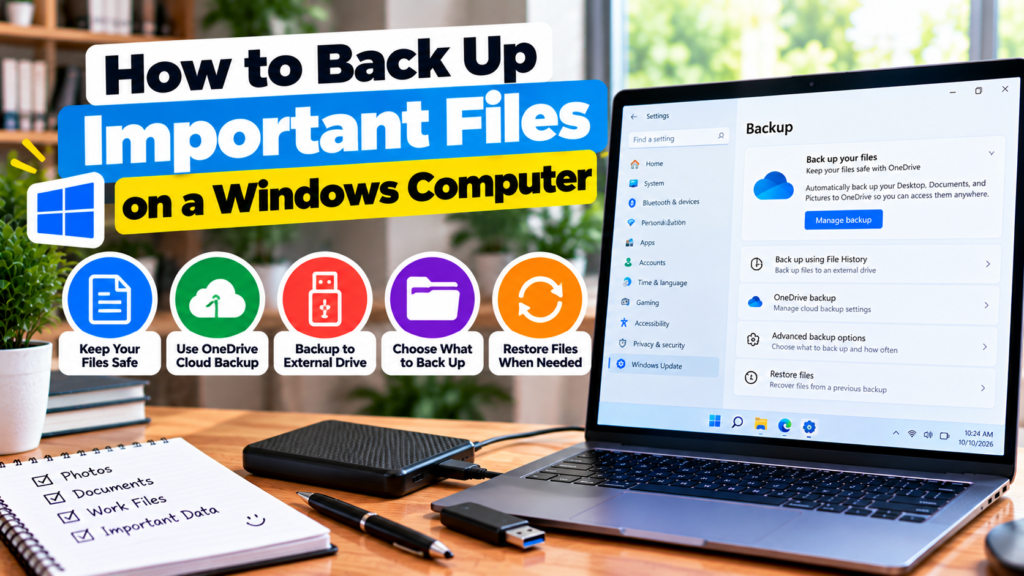
In Windows 11, open Settings and review the Backup section under Accounts. You may find options related to Windows Backup and supported synchronization services.
These options can help preserve certain files, settings, or preferences, depending on the configuration.
Windows 10 includes File History on supported editions and configurations. File History can save copies of files in selected libraries to an external drive or network location.
To configure File History, search for File History in Windows and follow the available instructions. You may need to connect a suitable external drive first.
Read the descriptions carefully so you understand which files and settings are included. A backup of selected folders is not necessarily a complete copy of your entire computer.
5. Back Up Files Using Cloud Storage
Cloud storage allows you to store copies of files on remote servers that you access through the internet.
Services such as Microsoft OneDrive and other reputable cloud providers offer ways to upload or synchronize documents and photographs.
To begin, choose a suitable service, sign in through its official application or website, and upload the files you want to protect.
Some services offer automatic synchronization for selected folders. This can be convenient because changes may be reflected online without manually copying every file.
However, synchronization is not always the same as an independent backup. If you delete a synchronized file, the deletion may also affect the online copy, depending on the service and settings.
Check the provider’s version history, recovery options, storage limits, and account security features.
For important documents, consider maintaining an additional copy on an external drive.
6. Organize Your Backup Folders
A backup becomes more useful when its contents are organized.
Create folders that make sense for your files and use descriptive names. For example, you might separate university assignments by subject or semester and business documents by project.
You can include dates in folder names when they help distinguish different backup versions.
Avoid creating an unnecessarily complicated structure that becomes difficult to maintain.
If you regularly update important files, decide whether you need to preserve previous versions or only the latest copies.
For work that changes frequently, version history or scheduled backups may help you recover an earlier version if a mistake occurs.
7. Create a Regular Backup Schedule
Backing up files once is not enough if you continue creating or editing important documents.
A regular schedule helps ensure that new information is protected.
For example, you might back up important assignments after major changes and copy personal photographs to a separate drive every week.
If you use a cloud service with automatic synchronization, check periodically that the service is running and your files have finished uploading.
The appropriate schedule depends on how often your files change and how much information you could afford to lose.
Business files and active projects may require more frequent backups than documents that rarely change.
In my opinion, consistency matters more than creating an elaborate system that you rarely use.
8. Protect Backups From Accidental Deletion and Malware
A backup should remain available even if your main computer experiences a serious problem.
Keeping an external drive permanently connected can be convenient, but it may also expose the backup to some threats affecting the computer.
Consider disconnecting the external drive after the backup finishes, when appropriate.
For especially important data, maintain another copy in a separate location or use a reputable backup service that provides suitable recovery and versioning options.
Protect cloud accounts with strong passwords and multifactor authentication where available.
Avoid connecting backup drives to computers that you suspect are infected with malware.
These precautions cannot eliminate every risk, but they can improve the chances that your files remain recoverable.
9. Check That Your Backup Actually Works
One common mistake is assuming that files are safely backed up without checking them.
After copying files to an external drive, open several documents, photographs, or other important items.
For cloud backups, sign in through the service’s official application or website and confirm that the files are present.
If your backup software provides a status report, review it for errors or incomplete operations.
You should also check whether your backup includes all the folders you intended to protect.
Testing a small selection of files does not guarantee that every file is intact, but it is a useful basic check.
For important work, occasionally practice restoring a file to a separate location so you know how the recovery process works.
10. Back Up Before Major Windows Changes
Before upgrading Windows, replacing a storage drive, or performing major system repairs, back up your important data.
Although many updates and upgrades complete successfully, unexpected problems can occur.
Copy personal files to a suitable external drive or confirm that a trusted backup service has stored them successfully.
If you plan to replace the drive containing Windows, make sure you have a clear plan for transferring your files and reinstalling any necessary software.
Do not rely solely on a recovery partition or the assumption that Windows will preserve every file.
Having a recent backup can reduce stress if the process does not go as expected.
11. Understand File Backup and Full System Backup
A file backup protects selected documents and folders. It is often sufficient for people who mainly want to preserve personal information.
A full system image, where supported, is a more comprehensive copy of a system’s drive or selected partitions. It may include Windows, installed programs, settings, and files.
Restoring a system image can help recover a computer’s previous configuration, but it is more complicated than copying individual documents.
The available tools and requirements vary by Windows version and backup software.
For many beginners, regularly backing up personal files is the easiest starting point. People who depend on specialized software or business systems may benefit from a more complete recovery plan.
Regardless of the method, keep important data protected separately from the computer itself.
12. What to Do If You Accidentally Delete Important Files
If you accidentally delete a file, first check the Recycle Bin. If the file is there, you may be able to restore it to its original location.
If the file is not available, check your external backups and cloud service recovery options.
Some cloud services retain deleted files or earlier versions for a limited period, depending on the account and service settings.
If the file was stored on a drive that may be failing, avoid unnecessary activity on that drive and seek professional advice when the data is especially valuable.
Do not assume that recovery software can restore every deleted file. Success depends on the storage device, how the data was removed, and whether it has been overwritten.
A regular backup routine is the most dependable way to reduce the consequences of accidental data loss.
Conclusion
Backing up important files on a Windows computer is a practical way to protect documents, photographs, assignments, and other valuable information.
Start by identifying your important folders and choosing a suitable backup method. You can use an external drive, supported Windows backup features, or a reputable cloud storage service.
Create a regular schedule, organize your files, protect your backup copies, and check that the saved files can be opened or restored.
In my opinion, maintaining more than one copy of especially important data is a sensible precaution. A computer can fail unexpectedly, but a reliable backup can make recovery much easier.
By making backups part of your regular computer routine, you can protect your work and use your Windows computer with greater confidence.