
Introduction
Saving files is one of the most common activities people perform on a computer. Documents, photographs, presentations, videos, and other files often contain important personal or professional information. However, keeping every file on one computer can create problems if the device becomes damaged, lost, or unable to start.
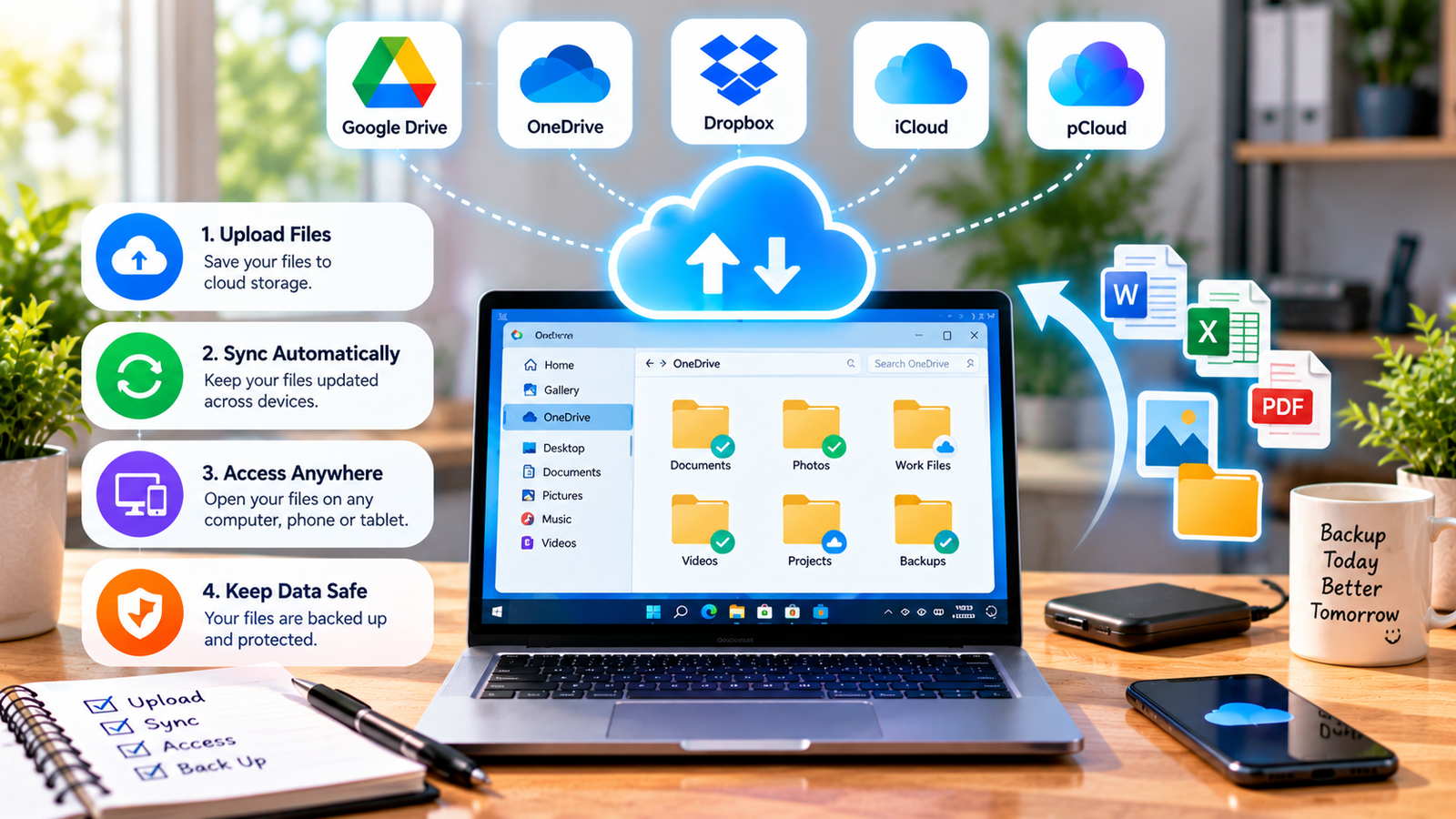
Cloud storage provides another way to save and access files. It allows users to store information on remote servers and access it through the internet using supported devices.
In my opinion, cloud storage is especially useful for students, office workers, and people who use more than one computer. It can make file sharing easier and provide another location for important documents.
However, cloud storage also requires careful account security, storage management, and privacy settings. In this article, I will explain how to use cloud storage to save computer files, choose a suitable service, upload documents, and protect your information.
What Is Cloud Storage?
Cloud storage is a service that allows you to save files on remote computer systems managed by a service provider. Instead of keeping every file only on your computer’s internal drive, you can upload selected files to an online storage account.
After uploading, you can usually access your files through a web browser or a dedicated application. Depending on the service and settings, you may also synchronize files across multiple devices.
For example, you might save a university assignment on your desktop computer and later open the same document from your laptop.
Cloud storage can also make it easier to share files with classmates, colleagues, or family members.
However, access usually depends on your account, internet connection, service availability, and the provider’s current terms. Cloud storage is convenient, but it should not automatically replace every other form of backup.
1. Choose a Suitable Cloud Storage Service
Several cloud storage services are available, and each offers different features and storage limits.
Popular options include Microsoft OneDrive, Google Drive, and Dropbox. They provide ways to upload, organize, and access files online, although their free storage allowances and paid features differ.
OneDrive can be convenient for people who use Windows and Microsoft applications. Google Drive works well with Google Docs, Sheets, and other Google services. Dropbox is another option for storing and sharing files.
Before choosing a service, consider the following points:
- How much storage space is included?
- Does it work with your computer and phone?
- Can you access files through a browser?
- What sharing controls are available?
- Does it offer file recovery or version history?
- What privacy and security features are provided?
Check the provider’s official website for current storage limits and account conditions because these can change.
Choose a service that fits your needs rather than creating multiple accounts without a clear purpose.
2. Create an Account
Most cloud storage services require an account before you can upload and manage files.
Visit the official website of your chosen provider. Select the sign up option if you do not already have an account, and follow the instructions.
You may need to provide an email address, create a password, or verify your identity.
Use a strong, unique password that you do not reuse on other websites. Enable multifactor authentication when available to add another layer of protection.
Avoid creating accounts through unfamiliar advertisements or links in unexpected emails. Check that the website address belongs to the intended provider.
If you are using a shared computer, avoid saving your password in the browser and sign out when you finish.
3. Upload Files Through a Web Browser
One of the easiest ways to use cloud storage is through a web browser.
After signing in to your account, open the storage area and look for an Upload or New option. The wording depends on the service.
Follow these general steps:
- Open the official cloud storage website.
- Sign in to your account.
- Open the folder where you want to save the files.
- Select the upload option.
- Choose the files or folders from your computer.
- Confirm the selection and wait for the upload to finish.
For example, you can upload a document from your Windows Documents folder to your cloud storage account.
The time required depends on the file size and your internet upload speed. Large videos may take longer than text documents.
Do not close the browser or disconnect your internet connection before the upload finishes unless the service confirms that the files have been saved.
After uploading, check that the files appear in your account and can be opened.
4. Install a Cloud Storage Application
Many cloud storage services provide desktop applications that connect your computer to your online account.
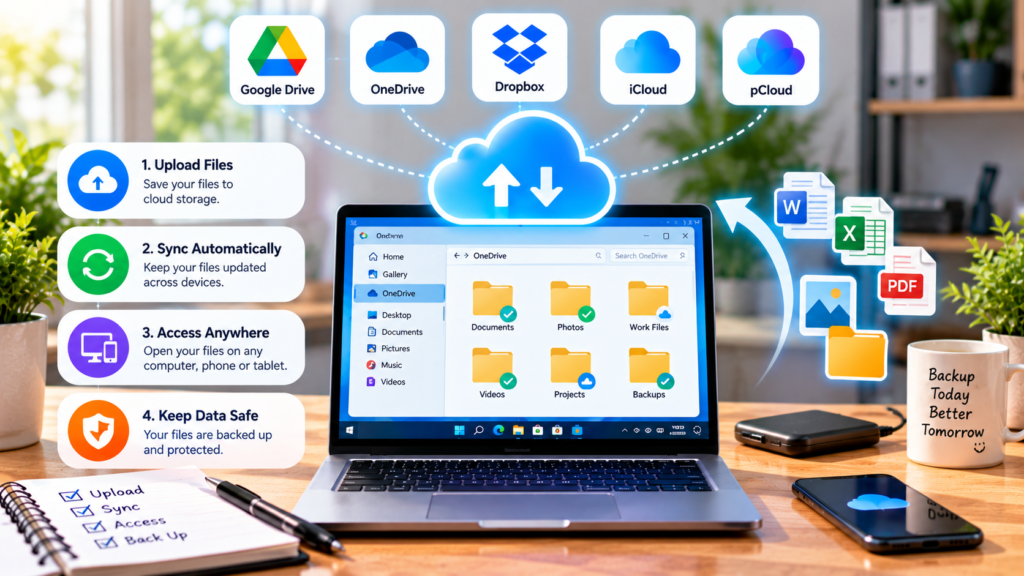
For example, OneDrive is integrated into many Windows installations. Other services may offer applications that you can download from their official websites.
After installation, sign in and review the synchronization settings.
Some applications create a dedicated folder on your computer. Files placed in that folder may synchronize with your online account automatically.
This can make everyday work easier because you do not have to upload every file manually.
However, synchronization settings deserve attention. Deleting a file in a synchronized folder may also delete its cloud copy or move it to a recycle area, depending on the service.
Understand how synchronization works before storing important files in the folder.
5. Organize Your Cloud Files Into Folders
Cloud storage becomes easier to use when files are organized properly.
Create folders based on the type of information you store. For example, you might create separate folders for university assignments, photographs, business documents, and personal records.
Use clear filenames that help you identify documents quickly. Instead of naming every assignment Document 1, Document 2, and Document 3, use names that describe the subject and purpose.
You can also create subfolders for different projects or academic terms.
Avoid creating too many levels of folders because this can make files harder to locate.
Good organization is particularly useful when you access the same files from multiple devices or need to share selected documents with another person.
6. Access Files From Another Computer
One of the main benefits of cloud storage is that you can access supported files from different devices.
For example, if you upload a document from your desktop computer, you may be able to open it later from your laptop by visiting the service’s website and signing in.
You can also use a supported mobile application to access compatible files on a phone or tablet.
Make sure you sign in to the correct account. If you use a public or shared computer, avoid saving passwords and always sign out when finished.
Do not assume that files are available offline on every device. Some services download files locally, while others require an internet connection to access them.
If you need a document during travel or in a place without reliable internet, download an appropriate copy beforehand and store it securely.
7. Share Files Safely
Cloud storage makes it easy to share documents without attaching large files to email messages.
Most services allow you to invite specific people or create a sharing link.
Before sharing, review the available permissions. Some links allow viewing only, while others permit editing or downloading.
For private documents, it is generally safer to restrict access to the intended recipients rather than creating a public link.
Check sharing settings again when the project is complete. Remove access that is no longer needed.
Avoid sharing personal identification documents, financial records, or confidential business information through an unrestricted link.
If you work with sensitive information, follow your organization’s policies and use the approved storage service.
8. Manage Your Cloud Storage Space
Free cloud storage accounts usually have a limited amount of space. Large photographs, videos, and duplicate files can fill that space quickly.
Review your storage usage periodically. Remove unnecessary copies and delete files that you no longer need.
Before deleting anything, confirm that you have another copy if the file is important.
You can also download large files to an external drive and remove them from cloud storage if you no longer need frequent online access.
Some services offer paid storage upgrades, but you may not need one if you organize files carefully.
Remember that deleting a file from cloud storage can affect synchronized devices. Check the provider’s deletion and recovery options before removing important information.
9. Protect Your Files and Privacy
Cloud storage can help protect files, but account security is essential.
Use a unique password and enable multifactor authentication. Be cautious of emails that ask you to sign in through an unfamiliar link.
Review which applications and devices have access to your account. Sign out of devices you no longer use and remove access that is unnecessary.
For confidential files, review the provider’s encryption and privacy information. If your needs require stronger protection, consider encrypting sensitive files before uploading them, using a method appropriate for your situation.
Do not store highly sensitive information in an account that other people can access.
Also remember that cloud storage providers have their own service terms and privacy practices. Review them if you plan to store important personal or business records.
10. Understand the Difference Between Synchronization and Backup
Synchronization and backup are related, but they are not the same.
Synchronization keeps files consistent across connected locations. If you change a file in one place, the changes may appear elsewhere. If you delete a synchronized file, the deletion may also affect other copies.
A backup is intended to provide a recoverable copy of your information. Depending on the backup system, it may preserve earlier versions or separate copies that are not immediately affected by changes to the original files.
For important information, use a backup approach that allows recovery after accidental deletion, hardware failure, or malware attacks.
Consider keeping a separate copy on an external drive and disconnecting it when not in use.
Common Cloud Storage Mistakes to Avoid
Do not assume that uploading a file automatically makes it private. Check sharing permissions and account security settings.
Avoid using the same password for your cloud account and other online services. If one account is compromised, reused passwords can put other accounts at risk.
Do not rely entirely on synchronization as your only backup. Accidental changes or deletions may spread across devices.
Avoid uploading confidential documents to an account you do not control, particularly on a public computer.
Finally, always verify that important files have finished uploading before deleting the original copy from your computer.
Conclusion
Cloud storage is a practical way to save, organize, access, and share computer files. Services such as OneDrive, Google Drive, and Dropbox provide useful options for people who work across multiple devices.
In my opinion, cloud storage is most effective when you combine convenience with good security habits. Choose a suitable service, organize files clearly, use a strong password, enable multifactor authentication, and check sharing permissions.
For important documents, maintain a separate backup rather than depending only on synchronization.
By following these steps, you can use cloud storage more confidently and keep your computer files easier to access and manage.


