

Introduction
Installing software is one of the basic computer skills that every Windows user should learn. Software allows you to perform different tasks, such as writing documents, browsing the internet, editing photographs, attending online meetings, and protecting your computer from security threats.
Although installing a program is usually straightforward, beginners sometimes download files from unsafe websites, select unwanted installation options, or become confused by installation messages.
In my opinion, learning the correct installation process helps you use your computer more confidently and avoid unnecessary problems. You do not need advanced technical knowledge to install most applications, but you should understand where to download them and what to check before running an installer.
This article explains how to install software on a Windows computer, including applications from official websites, Microsoft Store, and other trusted sources.
1. Check Your Computer Before Installing Software
Before downloading an application, make sure your computer can run it properly.
Some programs require a particular version of Windows, a certain amount of memory, available storage space, or specific hardware features.
First, check which version of Windows you are using. Open Settings, select System, and choose About. You can review the Windows edition, version, processor information, and installed RAM.
Next, check the software’s official system requirements. If your computer does not meet them, the application may not install or work correctly.
You should also confirm whether the software supports your computer’s architecture. Most modern Windows computers use 64 bit software, but some older devices use 32 bit systems.
Checking these details before installation can save time and prevent compatibility problems.
2. Download Software From the Official Website
The safest starting point for many applications is the developer’s official website.
For example, if you want to install VLC Media Player, visit the official VideoLAN website. If you want to install a web browser, use the browser developer’s official download page.
Follow these steps:
- Open your current web browser.
- Search for the official website of the software developer.
- Check that the website address is correct.
- Find the Download option.
- Select the appropriate Windows version.
- Wait for the download to finish.
Be careful with sponsored search results and download advertisements. Some websites imitate legitimate software pages or offer installers that contain unwanted applications.
Do not assume that a website is trustworthy simply because it appears near the top of search results.
If you are unsure about the correct download page, use documentation from the software developer or a trusted app store to locate it.
3. Install Software Using a Downloaded Setup File
Many Windows applications are distributed as executable setup files. These files commonly have an .exe extension, although some installers use other formats.
After downloading the installer, open your Downloads folder and locate the file.
Before running it, check the filename and confirm that you downloaded it from the intended source. If Windows Security or your browser displays a credible warning, stop and investigate rather than ignoring it.
To install the program:
- Double click the downloaded setup file.
- Approve the installation request if you trust the application and Windows asks for permission.
- Read the licence or setup information.
- Choose the installation options you need.
- Select Install or the equivalent option.
- Wait for the process to finish.
- Select Finish or close the installer when complete.
The exact steps depend on the application.
Some programs install automatically, while others let you choose an installation folder or optional components. Avoid changing advanced settings unless you understand what they do.
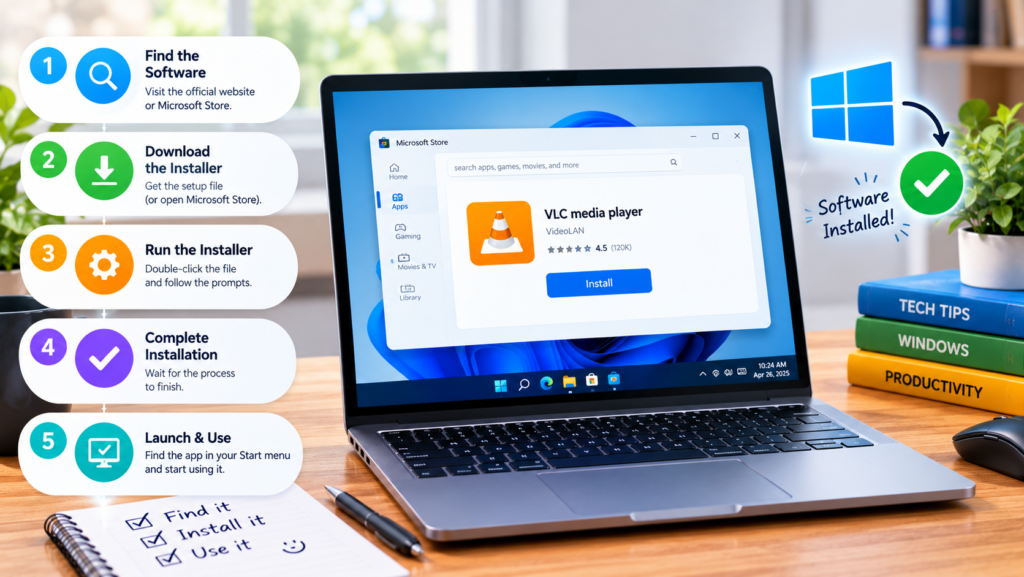
4. Install Applications From Microsoft Store
Microsoft Store provides another way to install compatible applications on Windows.
Open Microsoft Store from the Start menu. Search for the application you want and review its name, publisher, description, and available information.
If the application is available and suitable for your computer, select Get or Install, depending on the interface.
Windows will handle much of the installation process automatically. Some applications may require you to sign in to a Microsoft account.
One advantage of using a trusted store is that the application listing provides a more organized way to find supported software. However, you should still verify the publisher and review the application’s permissions and terms.
Not every Windows program is available through Microsoft Store. Traditional desktop applications may need to be downloaded from their official websites.
5. Understand Installation Permissions
During installation, Windows may display a User Account Control prompt asking whether you want to allow an application to make changes to your device.
This is a security feature. It helps prevent programs from making certain system changes without authorization.
Before selecting Yes, check whether the application is one you intended to install. If the publisher information is available, review it carefully.
Do not approve unexpected prompts simply because they appear while you are browsing the internet.
Some applications require administrator permission because they install system components or make changes that affect multiple users. Others can be installed without administrator privileges.
If you are using a school or work computer, you may not have permission to install software. In that case, contact the administrator rather than trying to bypass the restrictions.
6. Avoid Unwanted Applications During Installation
Some software installers may offer optional browser extensions, additional applications, or changes to your homepage and search settings.
Read each installation screen instead of clicking Next repeatedly.
If you see an optional offer that you do not need, decline it. Look carefully at checkboxes and installation settings, especially when the wording is unclear.
Be particularly cautious with installers downloaded from unfamiliar websites. Unwanted applications can consume storage, display advertisements, or change browser settings.
If the installer behaves unexpectedly or attempts to install unrelated software, cancel the process and verify that you have the legitimate installer.
A good installation process should not require you to accept unrelated offers just to use a basic application.
7. Install Software From a ZIP File
Some applications are provided in compressed ZIP archives instead of traditional setup files.
A ZIP file is a container that holds one or more files. You generally need to extract its contents before using the application.
To extract a ZIP file in Windows:
- Open File Explorer.
- Find the downloaded ZIP file.
- Right click it.
- Select Extract All.
- Choose a destination folder.
- Select Extract.
After extraction, open the new folder and read any included instructions.
Some portable applications can run directly from the extracted folder without a conventional installation process. Others include a setup file that you must run.
Do not run unfamiliar executable files simply because they are inside a ZIP archive. The same security precautions apply to compressed downloads.
8. Open the Software After Installation
When the installation finishes, the program may create a desktop shortcut or appear in the Start menu.
Open Start and search for the application’s name. Select the correct result to launch it.
The first time you open a program, you may need to accept its terms, sign in to an account, or select basic preferences.
Some applications require additional components or updates before they work properly. Follow the instructions provided by the developer.
If the program does not open, restart your computer if appropriate and check the application’s official troubleshooting guidance.
Do not immediately download another copy from an unfamiliar website. First confirm whether the installation completed successfully and whether the software supports your version of Windows.
9. Keep Installed Software Updated
After installing software, keep it updated to receive relevant security fixes, compatibility improvements, and bug corrections.
Some applications update automatically. Others include an Update option in their menus or settings.
You can also visit the developer’s official website to check for a supported new version.
Windows Update manages many operating system updates, but it does not necessarily update every desktop application.
Avoid using unknown driver or software updater tools that promise to update everything automatically. Such tools may install incorrect programs or unwanted software.
For important applications, review update notifications and restart the computer when required.
10. Uninstall Software You No Longer Need
If you no longer use an application, uninstalling it can free storage space and reduce clutter.
On Windows 11, open Settings, select Apps, and choose Installed apps. Find the program you want to remove, open its menu, and select Uninstall when available.
Follow the application’s removal instructions.
Be careful when uninstalling programs you do not recognize. Some entries may be required for hardware, system features, or other applications.
Before removing software that stores important documents, check where those files are saved. Uninstalling a program should not be treated as a backup method.
If an application refuses to uninstall, consult the developer’s official instructions instead of deleting random program folders.
Common Software Installation Problems
Installation may fail because of insufficient storage space, incompatible Windows versions, damaged download files, missing permissions, or security restrictions.
If an installer fails, read the error message and check the application’s system requirements.
Make sure the download completed successfully and that your computer has enough free space. Restart Windows if the installer or system requests it.
If the problem continues, check the official support page for that application.
Avoid disabling your antivirus protection just to force an installation to complete. If security software blocks a file, verify its source and investigate the warning first.
Conclusion
Learning how to install software on a Windows computer helps you use your device more effectively. The main steps are to check compatibility, download the application from a trusted source, review installation options, approve only legitimate requests, and verify that the program works properly.
In my opinion, the most important rule is to be careful about where you download software. An official website or trusted app store is generally a better choice than an unfamiliar download page.
By following these steps, you can install useful applications, avoid many common mistakes, and maintain a safer Windows computer for studying, working, and everyday tasks.


