

Introduction
Windows updates help keep a computer secure, stable, and compatible with supported software and hardware. However, the update process does not always work smoothly. Sometimes an update remains stuck, downloads slowly, fails to install, or displays an error message.
These problems can be frustrating, especially when you need your computer for studying, office work, or other important activities. Fortunately, many common Windows Update problems can be investigated using simple troubleshooting steps.
In my opinion, the best approach is to start with basic checks instead of immediately resetting Windows or deleting system files. A weak internet connection, insufficient storage, or a temporary software issue may be responsible.
In this guide, I will explain how to fix common Windows Update problems, identify possible causes, and use safer troubleshooting methods.
1. Check Your Internet Connection
Windows needs a reliable internet connection to download many updates.
If an update is downloading slowly or repeatedly failing, check whether other websites and online services work normally.
If possible, restart your router and reconnect to your network. You can also try another reliable connection if one is available.
Avoid interrupting the connection repeatedly while Windows is downloading an update.
If you use a VPN or proxy, check whether it is affecting the connection. Only change these settings when you understand your network configuration and can restore the original settings afterward.
Once your internet connection is stable, open Windows Update and try again.
2. Restart Your Computer
A simple restart can sometimes resolve temporary problems that interfere with Windows Update.
Save your work and close open applications. Open the Start menu, select Power, and choose Restart.
After Windows loads, return to Settings and open Windows Update. Select Check for updates to see whether the problem continues.
If Windows is already in the middle of installing an update, do not force the computer to shut down merely because the process seems slow.
Allow the installation to finish unless there is a clear indication that the system has encountered a serious problem.
Restarting is a useful first step, but recurring update failures may require further investigation.
3. Check Available Storage Space
Windows updates may need additional storage space to download files, prepare installations, and complete system changes.
If your system drive is nearly full, an update may fail or remain unable to complete.
Open Settings and select System, then Storage. Review how much space is available on the drive containing Windows.
If space is limited, remove unnecessary temporary files using the built in storage tools. You can also uninstall applications you no longer need or move large personal files to another suitable storage location.
Review the files carefully before deleting anything, particularly items in your Downloads folder.
After freeing up space, restart the update process and check whether it completes successfully.
4. Run the Windows Update Troubleshooter
Windows includes troubleshooting tools that can help identify certain update related problems.
The exact location depends on your Windows version.
In Windows 11, open Settings, select System, then Troubleshoot and Other troubleshooters. Look for Windows Update and select Run if the option is available.
Windows 10 also provides troubleshooting options under Settings, Update and Security, and Troubleshoot.
Follow the instructions displayed on the screen. The troubleshooter may identify a problem or suggest a change.
Not every issue can be repaired automatically, but this is a reasonable step before trying more advanced solutions.
After troubleshooting, return to Windows Update and check for updates again.
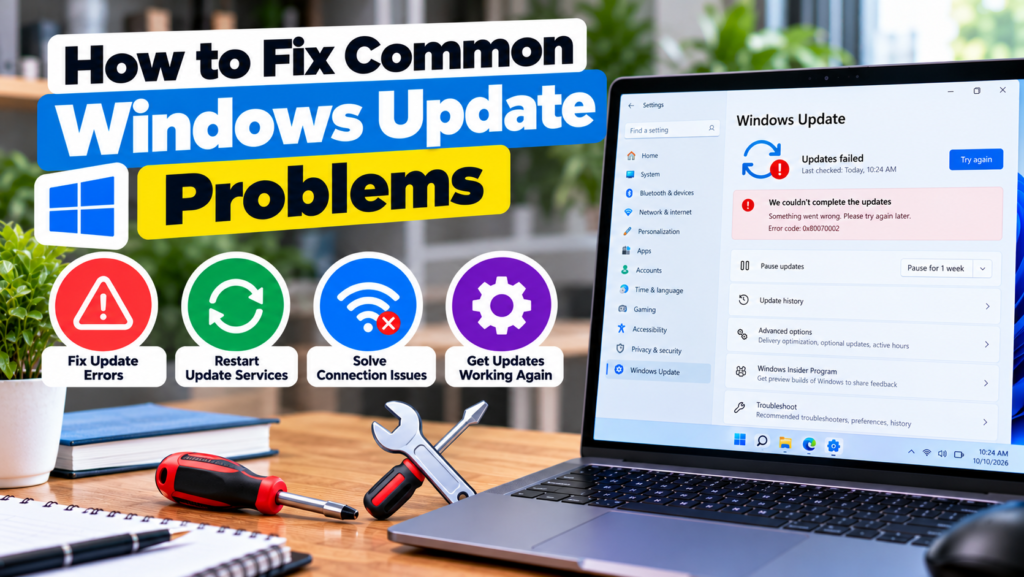
5. Check the Update Error Code
If Windows Update displays an error code, write it down before trying additional fixes.
An error code can provide useful information about the type of problem involved. Some errors relate to connectivity, storage, damaged update components, or compatibility issues.
Search for the exact code using Microsoft’s official support resources.
Read the instructions for your specific Windows version and update problem rather than following unrelated advice.
Avoid making major system changes based on a general error description alone.
If the error continues, the code may help you identify a more targeted solution or explain the problem to a technician.
6. Make Sure the Date and Time Are Correct
Incorrect date, time, or time zone settings can sometimes interfere with secure connections and other system functions.
Open Settings and select Time and language, then Date and time in supported versions of Windows.
Enable automatic time settings if appropriate for your computer and confirm that the correct time zone is selected.
You can then return to Windows Update and try again.
This is a simple check that may help in some situations, although incorrect time settings are not the cause of every update failure.
7. Check Whether Windows Update Services Are Working
Windows relies on background services to download and install updates.
If these services are disabled or experiencing problems, updates may fail.
Advanced users can search for Services through the Start menu and review the Windows Update related services. However, changing service settings without understanding them can create additional problems.
Do not randomly disable services or change their startup types based on generic instructions.
If you suspect a service problem, use Microsoft’s official troubleshooting guidance for your Windows version or seek technical assistance.
For beginners, it is safer to start with the built in troubleshooter, restart the computer, and check storage and connectivity before modifying service settings.
8. Install Updates One at a Time When Appropriate
Sometimes several updates are available, and one may fail while others install successfully.
Open Windows Update and review the status of the available updates.
If Windows provides individual installation options, follow its recommendations and note which update fails. This can help narrow down the problem.
Do not manually download random update packages simply because the automatic process has failed.
If a specific update repeatedly fails, check Microsoft’s update information to confirm that it applies to your system and whether known issues or special installation instructions exist.
A targeted approach is generally more useful than repeatedly attempting the same installation without checking the cause.
9. Check Device Compatibility
Some updates may not be offered because of compatibility concerns or hardware requirements.
This can be particularly relevant when upgrading to a major Windows version.
Check the system requirements and compatibility information for the update you want to install. For a major upgrade, confirm that your processor, memory, storage, and other hardware meet the relevant requirements.
Driver problems can also affect certain updates.
If an update is blocked because of a known compatibility issue, avoid forcing the installation without understanding the risks. Waiting for an appropriate fix may be safer.
10. Repair System Files When Necessary
Damaged Windows system files can sometimes contribute to update failures.
Windows provides tools that can check and repair certain system file problems.
One option is System File Checker. On supported Windows installations, open Terminal or Command Prompt with administrator privileges and run:
sfc /scannow
Wait for the scan to finish and follow any messages displayed.
On some systems, the Deployment Image Servicing and Management tool can be used to repair the Windows component image before running System File Checker. For example, the command DISM /Online /Cleanup-Image /RestoreHealth is commonly used on supported Windows installations.
These commands may take time and require an internet connection for certain repair operations.
If you are unfamiliar with administrator commands, follow Microsoft’s official instructions carefully before proceeding.
11. Avoid Unsafe Update Fixes
When an update fails, it can be tempting to follow instructions that promise an immediate solution.
Be cautious with unofficial repair tools, registry cleaners, and scripts that delete system folders or modify multiple settings without explanation.
Never disable security protections permanently just to complete an update.
Also, avoid interrupting an active installation or deleting Windows system files manually.
If a problem remains unresolved after basic troubleshooting, use official Microsoft guidance or consult a qualified technician.
Protecting your files and keeping Windows stable should remain priorities.
12. What to Do If Windows Update Still Fails
If Windows Update continues to fail, record the error code, note the update name, and review any troubleshooting results.
Check whether the computer has enough storage, a stable connection, and current compatibility information.
If the issue began after a recent driver or software change, investigate that change carefully.
For persistent problems, Microsoft’s official recovery and repair options may provide a next step. Back up important files before attempting major repairs or reinstalling Windows.
Windows 10 users should also remember that standard support ended on October 14, 2025. Check whether upgrading to a supported Windows version or enrolling in an applicable extended security update program is appropriate for your device.
Conclusion
Common Windows Update problems can often be investigated through a few careful steps.
Start by checking your internet connection, restarting the computer, and freeing up storage space. Use the Windows Update troubleshooter when available and record any error code that appears.
If the problem continues, check compatibility and consider appropriate system file repair tools using trusted instructions.
In my opinion, safe troubleshooting is better than making several changes at once. By identifying the likely cause and using official support resources, you can resolve many update problems while reducing the risk of damaging your Windows installation.


