

Introduction
Keeping Windows updated is an important part of maintaining a computer. Updates help protect your system, fix software problems, improve compatibility, and sometimes introduce useful features. Whether you use your computer for studying, office work, browsing, or entertainment, installing appropriate updates can help keep it reliable.
However, some users are unsure how to update Windows or what they should do before starting the process. Others worry that an update may interrupt their work or take too long to install.
In my opinion, updating Windows is a simple maintenance task once you understand the basic steps. You do not need advanced technical knowledge to check for updates through the Windows Settings application.
In this guide, I will explain how to update Windows step by step, prepare your computer, troubleshoot common update problems, and check whether your system is running the latest updates available for your device.
1. Check Which Version of Windows You Use
Before updating Windows, it is helpful to know which version is installed on your computer. The steps are similar in Windows 10 and Windows 11, but some settings may appear in different places.
To check your Windows version, press Windows + R on your keyboard. Type winver into the Run box and press Enter.
A window will display your Windows version and operating system build information.
You can also open Settings and select System, then About. This section provides additional details about your device.
Checking the version helps you follow the correct instructions and understand whether your computer supports a particular update.
Windows 10 and Windows 11 have different support arrangements. Windows 10 reached the end of standard support on October 14, 2025, so users should check their eligibility for supported options, including upgrading to Windows 11 or applicable extended security updates.
2. Prepare Your Computer Before Updating
Before installing a major update, save your work and close applications that you do not need. Some updates require a restart, and unsaved work could be lost.
If you use a laptop, connect it to a reliable power source. This helps prevent the computer from shutting down during installation.
It is also sensible to check your available storage space. Large updates may require additional room for downloaded files and installation processes.
Back up important documents, photographs, and other personal files before major operating system upgrades. A backup is particularly important if your computer contains work that would be difficult to replace.
Make sure your internet connection is stable, especially if the update is large.
These preparation steps reduce the chance of interruptions and help you approach the update process more confidently.
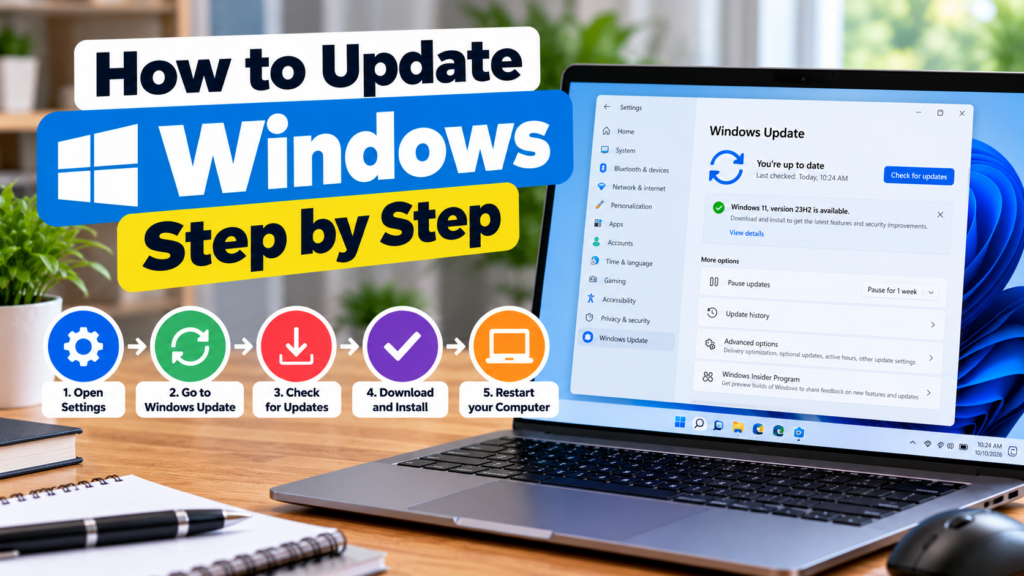
3. Open Windows Update Settings
The easiest way to update Windows is through the built in Windows Update feature.
In Windows 11, open the Start menu and select Settings. Choose Windows Update from the navigation menu.
In Windows 10, open Settings and select Update and Security, then Windows Update.
Once you reach the Windows Update page, you can check the update status and see whether new updates are available.
The page may also display a message asking you to restart your computer or complete an installation that has already been downloaded.
I recommend using the official Windows Update settings rather than downloading random update files from unfamiliar websites.
4. Check for Available Updates
After opening Windows Update, select Check for updates.
Windows will search for updates that apply to your device. Depending on your system, these may include security updates, bug fixes, quality improvements, and other supported updates.
If an update is available, Windows may begin downloading it automatically or display an option to download and install it.
Wait for the process to finish. Download time depends on your internet speed, the size of the update, and Microsoft’s update servers.
If Windows reports that your device is up to date, it means that no additional applicable updates are currently being offered through that check. It does not necessarily mean that every optional driver or application has the newest possible version.
5. Download and Install the Updates
When Windows identifies available updates, follow the instructions shown on the screen.
Some updates download and install automatically. Others may provide a Download and install option.
Keep your computer connected to the internet while downloading. Avoid switching off the computer during an active installation.
The time required depends on the update and your computer’s hardware. Smaller updates may finish relatively quickly, while major upgrades can take much longer.
You may see a progress indicator or status message while Windows prepares the installation.
If the process appears to pause, give it time before attempting troubleshooting. Interrupting an update unnecessarily can create additional problems.
6. Restart Your Computer When Required
Some Windows updates cannot finish installing until the computer restarts.
If Windows displays a Restart now button, save your work and select it when you are ready. You may also be able to schedule a restart for a more convenient time.
During the restart, your computer may display messages such as Working on updates. Do not force the computer to shut down simply because the process takes longer than expected.
The computer may restart more than once during a major update.
Once Windows returns to the desktop, open Windows Update again to confirm that the installation completed successfully.
7. Check Optional Updates Carefully
Windows sometimes offers optional updates, including certain drivers and preview updates.
To view these, open the Windows Update settings and look for the Optional updates section, if available.
Driver updates can improve compatibility or fix hardware problems. However, not every optional update is necessary for every user.
If your computer is working correctly, avoid installing unfamiliar drivers without checking whether they apply to your hardware.
For important hardware issues, the computer manufacturer’s support website may provide specific driver information.
I recommend prioritizing ordinary security and quality updates while reviewing optional updates according to your needs.
8. Update Windows Drivers When Necessary
Drivers help Windows communicate with hardware such as graphics cards, network adapters, printers, and audio devices.
Windows Update can provide many driver updates, but some specialized hardware may require drivers from the manufacturer.
If a device is not working correctly, open Device Manager and locate the relevant hardware category. You can review the device’s properties and update options.
For example, a graphics problem may require a compatible graphics driver, while a network issue may involve the wireless adapter driver.
Before installing a driver manually, confirm that it matches your computer model and Windows version.
Avoid unofficial driver download websites that promise automatic fixes without explaining what they install.
9. Troubleshoot Windows Update Problems
Sometimes Windows Update may fail to download or install an update. Common causes include insufficient storage, unstable internet, damaged update files, or temporary service problems.
Start by checking your internet connection and available storage space. Restart your computer if an update is not actively installing and try checking for updates again.
Windows includes troubleshooting options that may help identify update related problems. Depending on your version, you can find these under Settings, System, Troubleshoot, and Other troubleshooters.
If you see an error code, record it and consult Microsoft’s official support information for that specific error.
Do not immediately reset Windows or delete system folders. More advanced troubleshooting should be based on the error message and the condition of your computer.
10. Manage Active Hours and Restart Timing
Windows may need to restart your computer to complete updates. Active hours help reduce the chance of an automatic restart interrupting your usual work.
Open Windows Update settings and look for the options that control active hours or restart scheduling.
Set the hours during which you normally use your computer. Windows can use this information to manage some update related restarts more conveniently.
If you are preparing an assignment or attending an online meeting, check the update status beforehand rather than waiting until the last moment.
This small habit can help you avoid unexpected interruptions.
11. Understand Major Windows Upgrades
A major Windows upgrade is different from a small security update. It may introduce new features, change system components, or require more storage and installation time.
Before upgrading to a new Windows version, check your computer’s compatibility and the official system requirements.
Back up important files and make sure your essential applications and devices are supported.
If Windows offers an upgrade to a newer supported version, read the information provided before starting the installation.
Do not force an unsupported upgrade without understanding the potential compatibility and security implications.
12. Verify That the Update Was Successful
After installation and restart, open Windows Update again.
Review the displayed status and check whether any updates still require attention. If Windows reports an installation error, note the message and investigate the cause.
You can also check the update history to review recently installed updates.
If your computer works normally and the relevant updates show as successfully installed, there may be nothing else you need to do.
Remember that updating Windows is an ongoing maintenance task. Check periodically for new updates rather than assuming that one successful installation will keep the computer updated indefinitely.
Conclusion
Updating Windows step by step is a straightforward process when you use the official Windows Update settings.
Start by checking your Windows version, saving important work, connecting your laptop to power, and confirming that enough storage is available. Then open Windows Update, check for available updates, install the relevant files, and restart your computer when required.
If an update fails, check your internet connection, available storage, and any displayed error code before attempting advanced repairs.
In my opinion, regular updates are an important part of responsible computer use because they can improve security, reliability, and compatibility. By following these steps, you can manage Windows updates more confidently and keep your computer maintained according to the support options available for your device.


