

The internet makes it easy to study, work, communicate, shop, and find information. However, browsing the internet also comes with risks. Unsafe websites, fake advertisements, phishing pages, malicious downloads, and data tracking can affect your privacy and computer security.
You do not need to stop using the internet to protect your computer. Instead, you can develop safer browsing habits and make use of the security features already available on your device and browser.
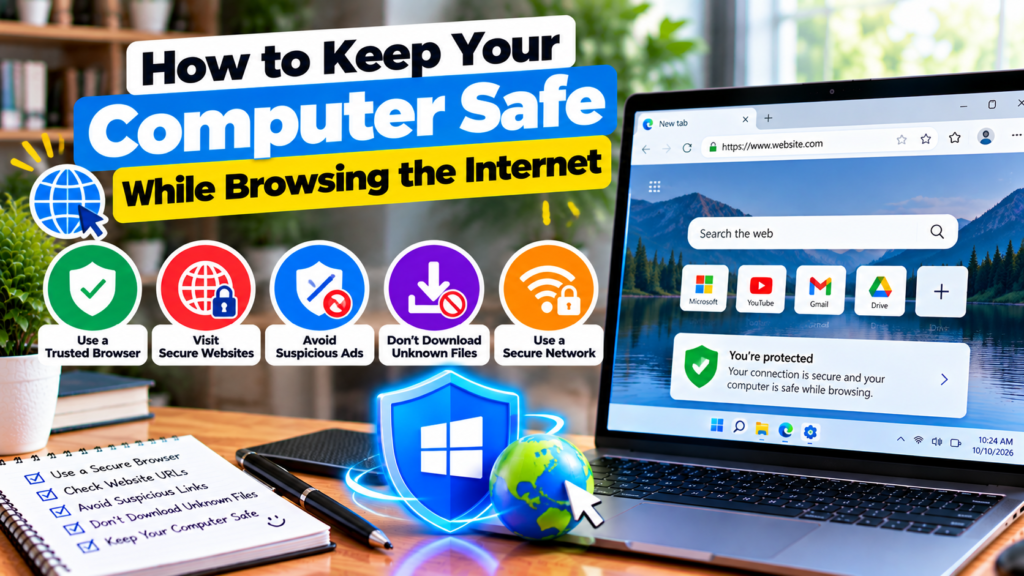
In this guide, I will explain how to keep your computer safe while browsing the internet, avoid common online threats, and protect your personal information.
1. Use an Updated Web Browser
Your web browser is the main tool you use to access websites, so keeping it updated is an important security step. Browser updates often fix security weaknesses and improve protection against harmful websites.
Popular browsers generally update automatically, but it is still a good idea to check that your browser is running a supported version.
Open your browser’s settings and look for its About section or update option. Install available updates and restart the browser if necessary.
Avoid using outdated browsers that no longer receive security updates. If your computer cannot run a supported browser, consider whether the operating system also needs to be upgraded.
2. Visit Trusted Websites
Before entering personal information or downloading a file, check whether the website is legitimate. Fake websites may imitate online stores, banks, software companies, educational platforms, or other familiar services.
Look carefully at the domain name. Small spelling changes or additional words can make a fraudulent address look similar to a real one.
For websites you use frequently, save the correct address as a bookmark. This can reduce the risk of accidentally visiting a fake page through a misleading search result or message.
Remember that a professional design does not guarantee that a website is trustworthy. Check the website’s identity and reputation before making payments or sharing sensitive information.
3. Understand HTTPS and Website Security
Many websites use HTTPS to encrypt information sent between your browser and the website. This helps protect data while it travels across the network.
You can usually identify an HTTPS connection by the address beginning with https:// and the browser’s connection indicator.
However, HTTPS does not guarantee that a website is honest or safe. Scam websites can also use HTTPS. It is important to verify the domain and the purpose of the website before trusting it.
If your browser displays a security warning about a website’s certificate, do not ignore it just to access the page. Leave the site unless you can independently establish that the warning is harmless and resolve it safely.
4. Avoid Suspicious Pop Ups and Advertisements
Some websites display pop ups claiming that your computer is infected, your files are at risk, or you must install a tool immediately. These messages may be designed to scare you into downloading unwanted software or contacting a scammer.
Your browser cannot reliably diagnose every computer security problem through a random website pop up. Do not call a phone number or download a program simply because a page displays a frightening warning.
Close the tab if possible. If a pop up prevents you from leaving, close the browser using the normal operating system controls and reopen it without restoring suspicious pages.
You can also enable your browser’s pop up protections and review notification permissions. Avoid allowing notifications from websites you do not recognize.
5. Download Software From Official Sources
Downloading software from unfamiliar websites can expose your computer to malware, unwanted applications, and misleading installers.
Whenever possible, download programs from the developer’s official website or a trusted application store. Check the program name and publisher before installation.
Be careful with free software that asks you to install additional tools or change your browser settings. Read installation screens instead of clicking through every step automatically.
Avoid cracked programs and unauthorized activation tools. Besides legal and reliability concerns, these files may contain malicious code or disable important security protections.
If a download seems suspicious or your security software warns you about it, do not try to bypass the warning without understanding the risk.
6. Use Strong Passwords and Multi Factor Authentication
Safe browsing also means protecting the accounts you access online. Use a different, strong password for each important service. A password manager can help you create and store unique passwords.
Enable multi factor authentication on email, financial accounts, cloud storage, and other services that support it. This adds another verification step when you sign in.
Avoid saving passwords on public or shared computers. If you use a shared device, sign out of your accounts and close the browser when you finish.
Be cautious if a website unexpectedly asks you to sign in again, especially after you click a link from an email or advertisement. Check the address before entering your login details.
7. Be Careful When Using Public Wi Fi
Public Wi Fi networks are convenient in libraries, hotels, airports, cafes, and other shared spaces. However, you should be careful when connecting to networks whose names and operators you cannot verify.
Confirm the correct network name with the business or organization. Avoid networks that appear to imitate a legitimate public hotspot.
Use HTTPS websites and keep your computer’s firewall enabled. A reputable VPN can provide an additional layer of protection for network traffic, particularly on untrusted networks, but it does not make phishing websites or malware safe.
Avoid sensitive transactions on devices or networks you do not trust. If you need to access a financial account, use a trusted device and the service’s official application or website.
8. Keep Antivirus and Firewall Protection Enabled
Security software can help identify malicious downloads, suspicious files, and other threats. On supported Windows computers, Microsoft Defender Antivirus and the built in firewall provide useful baseline protection.
Make sure real time antivirus protection is enabled and keep its security updates current. Run a scan if you download a suspicious file or notice unusual activity.
A firewall helps control network connections to and from your computer. Keep the Windows firewall enabled unless a qualified administrator has configured another suitable solution.
Do not install several unfamiliar security programs that claim to provide complete protection. Some may be unnecessary, unreliable, or harmful.
9. Protect Your Privacy in Browser Settings
Websites may collect information about your browsing activity through cookies, tracking technologies, and other methods. You can review your browser’s privacy settings to control some of this activity.
Consider blocking third party cookies where supported, reviewing site permissions, and clearing browsing data when appropriate. You can also limit website access to your location, camera, microphone, and notifications.
Only grant permissions when a website genuinely needs them. For example, a video meeting service may require microphone and camera access, while a simple article website usually does not.
Private browsing or incognito mode can reduce the amount of browsing history saved locally, but it does not make you anonymous to websites, network administrators, or internet service providers.
10. Keep Windows and Other Applications Updated
An updated browser alone is not enough to protect your computer. Your operating system and other applications also need security updates.
On Windows, open Settings and select Windows Update to check for available updates. Install important updates and restart the computer when requested.
Update your PDF reader, office applications, communication tools, and other programs you use regularly. Remove software that is no longer needed, especially if it is unsupported.
Keeping your computer updated reduces the number of known weaknesses that attackers may be able to exploit.
11. Back Up Important Files
Even when you follow safe browsing practices, online threats and hardware problems can still occur. A backup helps you recover important documents, photographs, projects, and study materials.
Use an external storage device or a reputable cloud backup service. Keep at least one backup protected from ordinary access by malware, and disconnect an external backup drive when it is not in use if appropriate.
Check your backups occasionally to make sure the files are complete and can be restored.
A backup is particularly valuable if ransomware encrypts your files or an unexpected software problem makes your computer unusable.
12. Learn to Recognize Online Scams
Some online scams use fake giveaways, investment promises, job offers, delivery notices, or warnings about account problems. They may ask you to pay a fee, provide personal information, or install a special application.
Be cautious when an offer seems unusually generous or demands immediate action. Verify the organization through independent sources and avoid sharing sensitive information with unknown people.
If a website claims that you have won a prize you never entered, asks for an unexpected payment, or requests remote access to your computer, stop and investigate before proceeding.
Never allow an unknown person to control your computer remotely just because they claim to be from technical support.
Conclusion
Keeping your computer safe while browsing the internet depends on a combination of technology and good judgment. Use an updated browser, visit trusted websites, avoid suspicious downloads, and keep antivirus and firewall protection enabled.
Strong passwords, multi factor authentication, privacy settings, and regular backups provide additional protection. Be especially careful with pop ups, unexpected messages, public Wi Fi networks, and websites asking for sensitive information.
By following these practical steps, you can reduce common online risks and make everyday internet use safer for work, education, shopping, and communication.


