

Introduction
Keeping computer software updated is one of the simplest ways to maintain a computer and protect it from common problems. Whether you use a computer for studying, office work, browsing the internet, online business, or entertainment, updated software helps your system work properly and securely.
Many computer users ignore update notifications because they are busy or do not understand why updates are important. Some people worry that an update will slow down their computer, while others keep postponing updates because they take time to install. However, ignoring important software updates for a long time can leave a computer exposed to security weaknesses, compatibility issues, and performance problems.
In my opinion, keeping software updated should be part of every computer user’s regular maintenance routine. You do not need advanced technical knowledge to manage most updates. In this guide, I will explain how to keep computer software updated, check for available updates, avoid common mistakes, and maintain a reliable computer.
Why Is It Important to Keep Computer Software Updated?
Software updates provide improvements that help programs work correctly. Developers regularly release updates to fix errors, improve security, introduce features, and maintain compatibility with newer devices and operating systems.
One of the most important reasons to update software is security. Older software may contain weaknesses that attackers can use to access systems or install malicious programs. Security updates help address known vulnerabilities and reduce these risks.
Updates can also fix bugs. For example, an application might close unexpectedly, display an error message, or fail to open certain files. An update may resolve the issue.
Another benefit is compatibility. Newer versions of applications are often designed to work with current operating systems and file formats.
However, updates do not guarantee that every problem will disappear. Some updates may introduce new bugs or change how a program works. This is why it is sensible to use official update sources and keep backups of important files.
1. Check for Windows Updates Regularly
If you use a Windows computer, checking Windows Update is an important part of software maintenance. Microsoft provides operating system updates that can include security fixes, reliability improvements, and feature changes.
To check for updates in Windows 11, follow these steps.
- Open the Start menu.
- Select Settings.
- Choose Windows Update.
- Click Check for updates.
- Follow the instructions if updates are available.
- Restart your computer if required.
The names or positions of some settings may differ in other Windows versions.
Before installing a major update, save your work and close unnecessary applications. If your computer is a laptop, connect it to a reliable power source. Make sure you have enough available storage space.
It is also useful to check your update status occasionally instead of assuming that everything is current. Automatic updates can handle many routine tasks, but some updates may require your attention.
Remember that older Windows versions may no longer receive regular security updates. For example, standard support for Windows 10 ended on October 14, 2025. If you still use Windows 10, check Microsoft’s current support options and determine whether your computer can move to a supported version.
2. Enable Automatic Updates
Automatic updates make software maintenance easier because your computer can download and install supported updates without requiring you to check manually every time.
Windows Update normally manages many operating system updates automatically. You can review the available settings under Windows Update to understand how your computer handles downloads, installations, and restarts.
Many applications also have their own automatic update options. Check the settings of your browser, office applications, security software, and other frequently used programs.
Automatic updates are useful because they reduce the chance of forgetting important security fixes. However, they do not mean you should never review your system. Occasionally check whether updates have failed or whether a restart is required.
For work computers, you may need to follow an organization’s update schedule. If your computer is managed by a school or employer, avoid changing administrator settings without permission.
3. Keep Your Web Browser Updated
A web browser is one of the most frequently used applications on a computer. It provides access to websites, email, online banking, educational platforms, and many other services.
Because browsers interact with internet content, keeping them updated is especially important. Updates may fix security weaknesses, improve website compatibility, and correct performance problems.
For Google Chrome, open the browser menu, go to Help, and select About Google Chrome. The browser will check for available updates and may ask you to restart it.
Other browsers, including Microsoft Edge and Mozilla Firefox, provide similar update options. The exact steps depend on the browser and version.
Only install browsers from their official websites or trusted app stores. Avoid downloading installers from unfamiliar websites that advertise modified or supposedly faster browser versions.
After updating your browser, review your extensions occasionally. Remove extensions you no longer use, especially those you do not recognize or trust.
4. Update Installed Applications
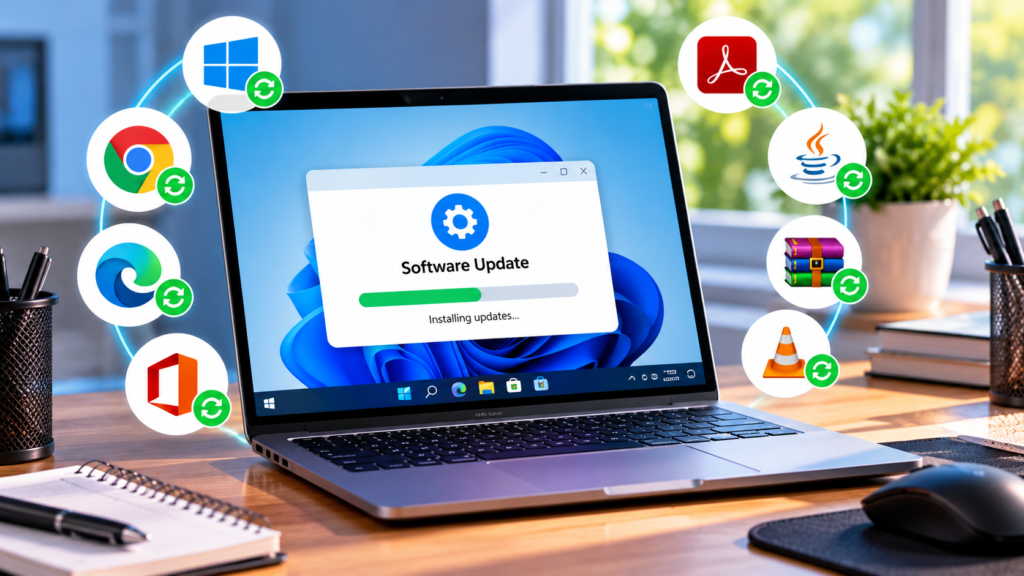
Updating Windows alone does not necessarily update every program installed on your computer. Applications such as document editors, media players, image editors, communication tools, and PDF readers may have separate update systems.
Open each important application and look for an Update option in its menu or settings. Some programs automatically check for new versions when they start.
If an application does not offer an update option, visit the developer’s official website to check for the latest supported version.
You should pay particular attention to software that handles documents downloaded from the internet. PDF readers, office applications, and archive tools can all benefit from security fixes.
Avoid installing updates from pop up advertisements that claim your computer has several outdated programs. These messages may be misleading or designed to distribute unwanted software.
A trusted update notification should come from the application itself, its official updater, or a recognized operating system update service.
5. Update Device Drivers Carefully
Device drivers help Windows communicate with hardware such as graphics cards, printers, network adapters, audio devices, and other components.
When a driver becomes outdated or incompatible, you may experience problems such as missing sound, unreliable WiFi, display issues, or a printer that stops working correctly.
You can use Windows Update to receive many recommended driver updates. You can also visit your computer manufacturer’s official support website and search for drivers designed for your exact model.
Graphics card manufacturers may provide their own official applications for managing graphics drivers.
However, not every driver needs to be updated immediately. If a device works correctly, installing an unnecessary driver may provide little benefit. For important computers, it is sensible to check compatibility information before making major driver changes.
Avoid third party driver updater programs from unknown sources. Downloading an incorrect driver can cause system instability or hardware problems.
6. Keep Security Software Updated
Antivirus and other security applications need current protection information to identify emerging threats effectively. Their updates may include detection improvements, security fixes, and changes to monitoring features.
Windows includes Microsoft Defender Antivirus on supported systems. You can review Windows Security to check the protection status and available security intelligence updates.
If you use another reputable security application, open its official interface and check that automatic updates and real time protection are working.
Do not install multiple full antivirus programs without understanding how they interact. Running several real time security products simultaneously can create conflicts and unnecessary system load.
Remember that antivirus software is only one part of computer security. Safe browsing, careful downloads, strong passwords, and regular backups are also important.
7. Make Space Before Installing Large Updates
Some updates require a significant amount of free storage space. If your computer’s storage is almost full, installation may fail or the system may run less efficiently.
Before installing a large update, review your available storage. On Windows, open Settings and select System, then Storage.
You can remove temporary files through the available Windows storage tools, uninstall applications you no longer need, and move personal files to another suitable storage location.
Always review the files selected for deletion. Do not remove personal documents or unfamiliar system files simply because they occupy space.
For major updates, keeping a reasonable amount of free space can make the installation process easier. The exact requirement depends on the update and the computer.
8. Restart Your Computer When Necessary
Some updates cannot finish installing until you restart the computer. Restarting allows Windows and applications to replace certain files and apply system changes.
If Windows displays a restart notification, save your work and restart at a convenient time. Avoid repeatedly postponing important security updates.
Do not force the computer to shut down while an update is actively installing unless there is a serious problem that requires intervention. Interrupting an installation can sometimes cause errors.
If an update appears stuck for an unusually long time, check the computer manufacturer’s guidance and Microsoft’s troubleshooting information before attempting advanced repairs.
9. Back Up Important Files Before Major Updates
Although routine updates usually install without problems, unexpected issues can occur. A backup helps protect your documents, photographs, study materials, and other important files.
You can back up files to an external drive, a trusted cloud storage service, or another secure location. Choose a method that suits your storage needs and internet connection.
For major operating system upgrades, review the available recovery options and make sure you know how to restore your files if something goes wrong.
Do not treat system restore points as a complete backup of personal documents. A separate backup of important files provides better protection against accidental deletion, hardware failure, and other problems.
10. Common Software Update Mistakes to Avoid
One common mistake is downloading software from unofficial websites. Such installers may contain unwanted applications or malware.
Another mistake is ignoring security warnings because an application appears to work normally. A program can function correctly while still containing known security weaknesses.
Avoid installing beta versions of software on your main computer unless you understand the risks. Beta releases may contain unfinished features and unexpected errors.
You should also avoid shutting down your computer during an active installation or ignoring repeated update failures. Check the error message and use official troubleshooting guidance.
Finally, do not assume that every update is necessary for every device. Review the purpose of an update, especially when it involves firmware or specialized hardware.
Conclusion
Keeping computer software updated is an important habit for maintaining security, reliability, and compatibility. Regularly checking Windows Update, updating your browser and applications, maintaining security software, and reviewing device drivers can help prevent many common computer problems.
In my opinion, the easiest approach is to enable automatic updates where appropriate and review the update status regularly. Back up important files before major upgrades and download software only from trusted sources.
By following these simple computer software update tips, you can keep your computer better protected and ready for everyday tasks such as studying, office work, browsing, and online communication.


